
Notice
Recent Posts
Recent Comments
Link
| 일 | 월 | 화 | 수 | 목 | 금 | 토 |
|---|---|---|---|---|---|---|
| 1 | 2 | 3 | 4 | 5 | 6 | |
| 7 | 8 | 9 | 10 | 11 | 12 | 13 |
| 14 | 15 | 16 | 17 | 18 | 19 | 20 |
| 21 | 22 | 23 | 24 | 25 | 26 | 27 |
| 28 | 29 | 30 | 31 |
Tags
- append()
- Dictionary
- wcss
- Python
- sklearn
- pandas
- len()
- analizer
- 반복문
- 최댓값
- IN
- function
- 분류 결과표
- count()
- Machine Learning
- elbow method
- nan
- insert()
- DataFrame
- DataAccess
- 덴드로그램
- matplotlib
- numpy
- del
- 최솟값
- dendrogram
- hierarchical_clustering
- data
- list
- string
Archives
- Today
- Total
개발공부
[Android] 네트워크 통신을 위한 Volley 예제, 타임아웃 설정, JSON 데이터 파싱 본문
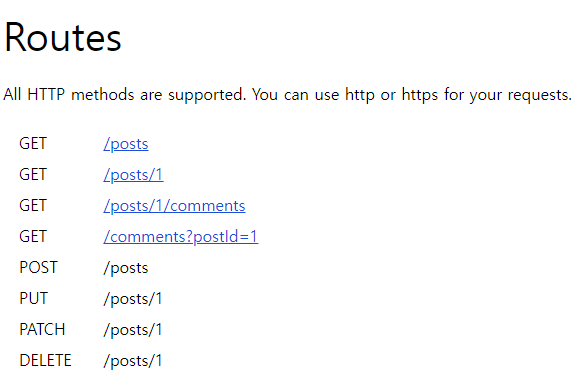
여러가지 API를 무료로 제공해주는 jsonplaceholder로 예제를 해보겠습니다.
https://jsonplaceholder.typicode.com/
JSONPlaceholder - Free Fake REST API
{JSON} Placeholder Free fake API for testing and prototyping. Powered by JSON Server + LowDB. Tested with XV. As of Oct 2021, serving ~1.7 billion requests each month.
jsonplaceholder.typicode.com
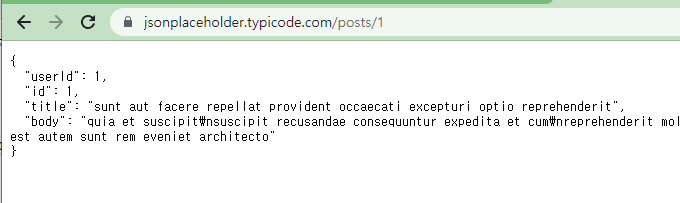
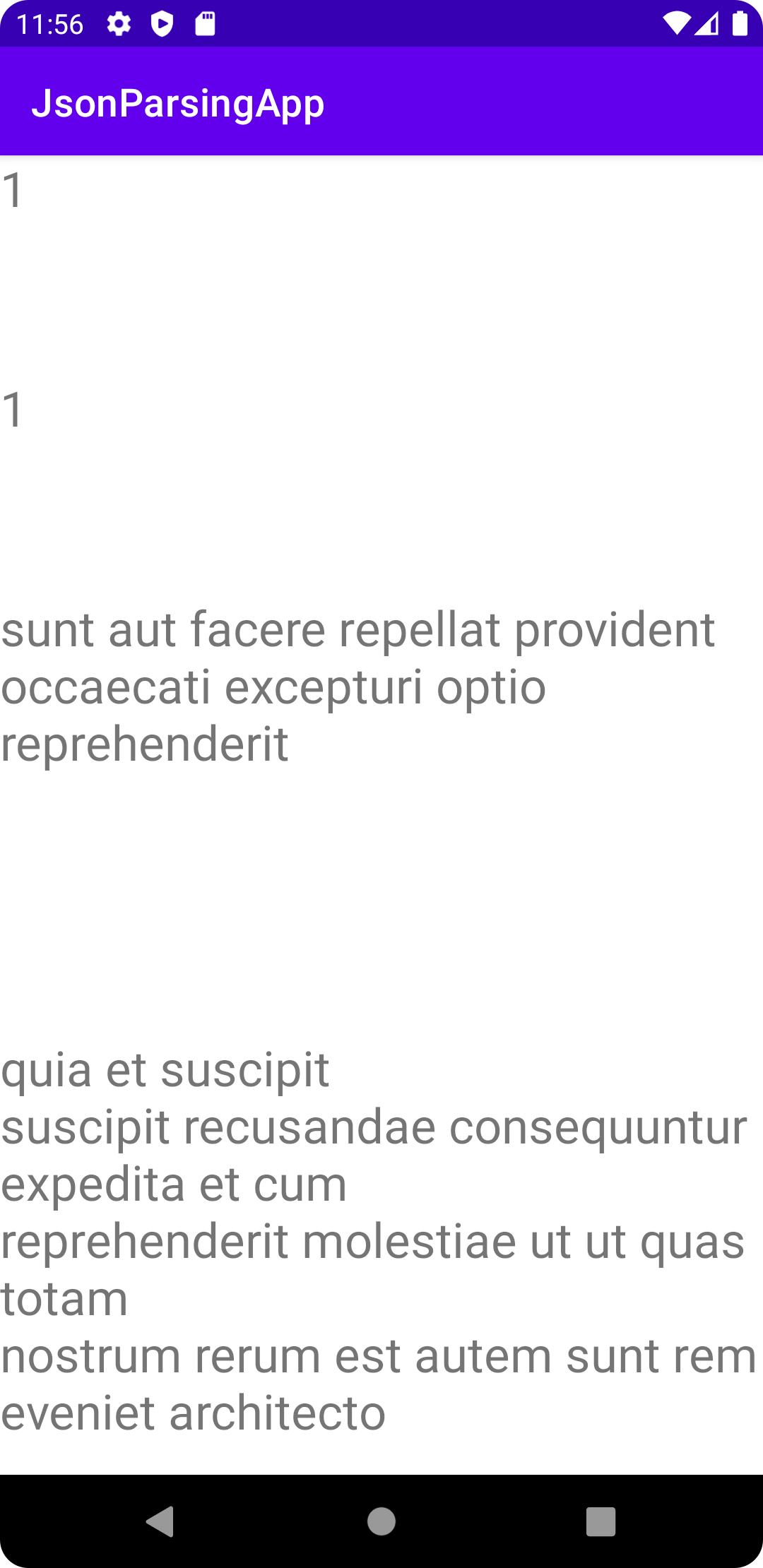
GET 메소드를 사용해 아래 post/1를 호출해 보겠습니다.
activity_main.xml
<?xml version="1.0" encoding="utf-8"?>
<androidx.constraintlayout.widget.ConstraintLayout xmlns:android="http://schemas.android.com/apk/res/android"
    xmlns:app="http://schemas.android.com/apk/res-auto"
    xmlns:tools="http://schemas.android.com/tools"
    android:layout_width="match_parent"
    android:layout_height="match_parent"
    tools:context=".MainActivity">


    <LinearLayout
        android:layout_width="match_parent"
        android:layout_height="match_parent"
        android:orientation="vertical">

        <TextView
            android:id="@+id/txtUserid"
            android:layout_width="match_parent"
            android:layout_height="0dp"
            android:layout_weight="1"
            android:text="TextView"
            android:textSize="25sp" />

        <TextView
            android:id="@+id/txtId"
            android:layout_width="match_parent"
            android:layout_height="0dp"
            android:layout_weight="1"
            android:text="TextView"
            android:textSize="25sp" />

        <TextView
            android:id="@+id/txtTitle"
            android:layout_width="match_parent"
            android:layout_height="0dp"
            android:layout_weight="2"
            android:text="TextView"
            android:textSize="25sp" />

        <TextView
            android:id="@+id/txtBody"
            android:layout_width="match_parent"
            android:layout_height="0dp"
            android:layout_weight="2"
            android:text="TextView"
            android:textSize="25sp" />
    </LinearLayout>
</androidx.constraintlayout.widget.ConstraintLayout>
res/xml 에 network_security_config.xml 생성

jsonplaceholder.typicom.com 인 도메인만 허용해준다는 뜻이다.
<?xml version="1.0" encoding="utf-8" ?>

<network-security-config>
    <domain-config cleartextTrafficPermitted="false">
        <domain includeSubdomains="true">*.jsonplaceholder.typicode.com</domain>
    </domain-config>
</network-security-config>
AndroidManifest.xml에
아래 세개의 코드를 추가해 줍니다.
android:targetSandboxVersion="1"<uses-permission android:name="android.permission.INTERNET"/>android:usesCleartextTraffic="true"
android:networkSecurityConfig="@xml/network_security_config"
적용하면 아래와 같습니다.
<?xml version="1.0" encoding="utf-8"?>
<manifest xmlns:android="http://schemas.android.com/apk/res/android"
xmlns:tools="http://schemas.android.com/tools"
package="com.fullspringwater.jsonparsingapp"
android:targetSandboxVersion="1">
<uses-permission android:name="android.permission.INTERNET"/>
<application
android:usesCleartextTraffic="true"
android:networkSecurityConfig="@xml/network_security_config"
android:allowBackup="true"
android:dataExtractionRules="@xml/data_extraction_rules"
android:fullBackupContent="@xml/backup_rules"
android:icon="@mipmap/ic_launcher"
android:label="@string/app_name"
android:roundIcon="@mipmap/ic_launcher_round"
android:supportsRtl="true"
android:theme="@style/Theme.JsonParsingApp"
tools:targetApi="31">
<activity
android:name=".MainActivity"
android:exported="true">
<intent-filter>
<action android:name="android.intent.action.MAIN" />
<category android:name="android.intent.category.LAUNCHER" />
</intent-filter>
</activity>
</application>
</manifest>
build.gradle
아래 코드를 추가합니다.
dependencies {
    implementation 'com.android.volley:volley:1.2.1'
}
MainActivity.java
package com.fullspringwater.jsonparsingapp;

import androidx.appcompat.app.AppCompatActivity;

import android.os.Bundle;
import android.util.Log;
import android.widget.TextView;
import android.widget.Toast;

import com.android.volley.Request;
import com.android.volley.RequestQueue;
import com.android.volley.Response;
import com.android.volley.VolleyError;
import com.android.volley.toolbox.JsonObjectRequest;
import com.android.volley.toolbox.Volley;

import org.json.JSONException;
import org.json.JSONObject;

public class MainActivity extends AppCompatActivity {

    TextView txtUserid;
    TextView txtId;
    TextView txtTitle;
    TextView txtBody;


    // final 변수는 변경이 불가능하다.
    final String URL = "https://jsonplaceholder.typicode.com/";
    @Override
    protected void onCreate(Bundle savedInstanceState) {
        super.onCreate(savedInstanceState);
        setContentView(R.layout.activity_main);

        txtUserid = findViewById(R.id.txtUserid);
        txtId = findViewById(R.id.txtId);
        txtTitle = findViewById(R.id.txtTitle);
        txtBody = findViewById(R.id.txtBody);

        // apiUrl 선언
        String apiUrl = URL + "posts/1";

        RequestQueue requestQueue = Volley.newRequestQueue(MainActivity.this);
        // 네트워크 통신을 위한 Request를 만들어야 하는데,
        // JSON으로 통신하기 때문에
        // JsonObjectRequest 클래스를 객체 생성한다.
        // 생성자는 : http 메소드, API URL, 전달할 데이터, 응답받으면 실행할 코드,
        JsonObjectRequest jsonObjectRequest = new JsonObjectRequest(Request.Method.GET,
                apiUrl, null, new Response.Listener<JSONObject>() {
            @Override
            public void onResponse(JSONObject response) {
                // 서버로부터 응답(Response)를 받아서 텍스트 뷰에 표시한다.
                // API 를 호출한 결과가 여기서 실행된다.

                // JSON 객체에서 , 우리가 원하는 정보를 빼내야 된다.
                try {
                    // JSONObject 에서, 내가 가져올 데이터가 문자열이면, getString("키")
                    // 내가 가져올 데이터가 정수이면, get("키")
                    // 내가 가져올 데이터가 float 이면, getFloat("키")
                    // 내가 가져올 데이터가 double 이면, getDouble("키")
                    // 내가 가져올 데이터가 리스트이면, getJsonArray("키")
                    // 내가 가져올 데이터가 딕셔너리 형태이면, getJsonObject("키")
                    //로 데이터를 가져올 수 있다.
                    String userId = response.getString("userId");
                    String id = response.getString("id");
                    String title = response.getString("title");
                    String body = response.getString("body");
                    txtUserid.setText(userId);
                    txtId.setText(id);
                    txtTitle.setText(title);
                    txtBody.setText(body);

                } catch (JSONException e) {
                    e.printStackTrace();
                    Toast.makeText(getApplicationContext(), "네트워크 에러입니다.",
                            Toast.LENGTH_SHORT).show();
                    return;
                }
            }
        }, new Response.ErrorListener() {
            @Override
            public void onErrorResponse(VolleyError error) {
                Log.i("myApp", error.toString());
            }
        });

        // 네트워크를 통해서 데이터를 가져올 때
        // 시간이 오래 걸리면,
        // 타임아웃 값을 늘려준다.
        jsonObjectRequest.setRetryPolicy(new com.android.volley.DefaultRetryPolicy(
                65000 ,
                com.android.volley.DefaultRetryPolicy.DEFAULT_MAX_RETRIES,
                com.android.volley.DefaultRetryPolicy.DEFAULT_BACKOFF_MULT));

        // 실제로 네트워크 호출하는 코드
        // add()
        requestQueue.add(jsonObjectRequest);
    }
}
'Android' 카테고리의 다른 글
| [Android] CountDownTimer 사용법 (0) | 2022.07.12 |
|---|---|
| [Android] 네트워크 통신을 위한 AndroidManifest.xml 파일 설정법 (0) | 2022.07.12 |
| [Android] 액티비티 라이프 사이클 (LifeCycle) (0) | 2022.07.12 |
| [Android Studio] TextView의 setText 함수 특징 (문자열만 가능) (0) | 2022.07.08 |
| [Android Studio] EditText 속성들 (0) | 2022.07.08 |
'Android' Related Articles
more


